
Wiki · Maps
Drawing road maps
The GPS walks you along roads because someone drew them: a line in a set colour over each zone and city map. This page is everything you need to fill one out, from the colour key to saving the file.
Setting up
-
Start from the map's own picture
Each zone and city has one map image, 1002 × 668 pixels, named like
Zone_215_Mulgore_Mulgore.png. The image's edges are the map's 0 and 100 coordinates, so a line drawn on it lands in the right place in the world. -
Draw on a new transparent layer
In any paint program with layers (Photoshop, PhotoCraft, Krita…), add a layer above the map and draw only on it.
-
Use a hard pencil
The pencil tool, not a soft brush: no anti-aliasing, so every pixel is exactly the key colour. 3 px wide in zones, 2 px in cities. On a tablet, turn pressure off for both size and opacity, and turn on line smoothing if your program has it.
-
Zoom in and follow the middle of the road
At 200–300 %, Shift-click from point to point to draw straight stretches. Within 2–3 pixels of the road's middle is plenty: a pixel is about 3.5–10 yards in a zone and 1–2 yards in a city.
The colour key
Use these exact colours. Only magenta is needed; the rest add detail.
Lines: where you can go
| Colour | Hex | Means |
|---|---|---|
| Magenta | #FF00FF |
Road: any drawn road, big or small. The GPS prefers these. |
| Cyan | #00FFFF |
Trail or footpath: the dotted paths, shortcuts between roads. |
| Green | #00FF00 |
Open way with no road: a mountain pass, a ramp up a hill, a beach you can follow. |
| Orange | #FF8000 |
One-way drop: a ledge you can jump down but not climb. Put a blue dot at the bottom. |
| Purple | #8000FF |
Another floor: an upper hall or an underpass. It joins other lines only at its ends or at a yellow lift dot, never where it crosses them. |
| Dark teal | #008080 |
A further floor, such as canals or sewers, when a map already uses purple. Same rule as purple. |
| Yellow line | #FFFF00 |
Lift or portal between two landings on the same map: a ride, not a walk. |
Dots: points that matter (a solid dot, about 7 px)
| Colour | Hex | Means |
|---|---|---|
| Yellow dot | #FFFF00 |
One end of a lift. Where a lift's two ends are on different maps, put a dot at each end on its own map, at the same spot: they join up. Where two floors meet at a lift on one map, one dot touching both line ends. |
| White | #FFFFFF |
Town or city entrance: a gate, a city's main way in. |
| Blue | #0000FF |
Boarding spot: a dock, a zeppelin tower, the tram platform. Also the bottom of an orange drop. |
| Black | #000000 |
Cave or tunnel mouth leading somewhere off this map. |
Barriers and areas
| Colour | Hex | Means |
|---|---|---|
| Red line | #FF0000 |
Can't walk here: fill mountain ranges solid, draw lines along cliffs and walls. Only your own zone's: leave the neighbouring zones on the picture alone. |
| Dark red fill | #800000 |
Area to avoid: elite camps, hostile towns. Fill it in solid. |
| Azure fill | #0080FF |
Water: lakes, rivers and the sea. Passable by swimming, but slow, so routes go round it when they can. |
Everything you don't colour is open ground: the GPS works out the cross-country ways between your roads, keeping low levels on the roads and letting high levels cut across. Dots are recorded with your drawing for later.
The rules that keep it clean
- Touching means connected. Where two ways meet, let the lines overlap a little. Different colours connect too, except purple and teal, which join only at their ends.
- A gap means no way through. Breaks of 1–2 px are closed for you; anything bigger is taken as a gap on purpose.
- Draw solid lines. Copy a dotted trail as a solid cyan line: dots don't join up.
- Draw through icons, labels and bridges that sit on a road.
- Run roads to the edge of the map where they leave the zone, so they join the next zone's roads. City gates should meet the zone road outside.
- Leave out buildings, fences, fields and decoration, and don't ring fields with loops: only where a player would walk.
- Lines across water are fine where you'd really swim, such as out to an island.
- Reach the docks and flight masters. A road should come within a short walk of every dock, flight master and inn.
Two worked examples
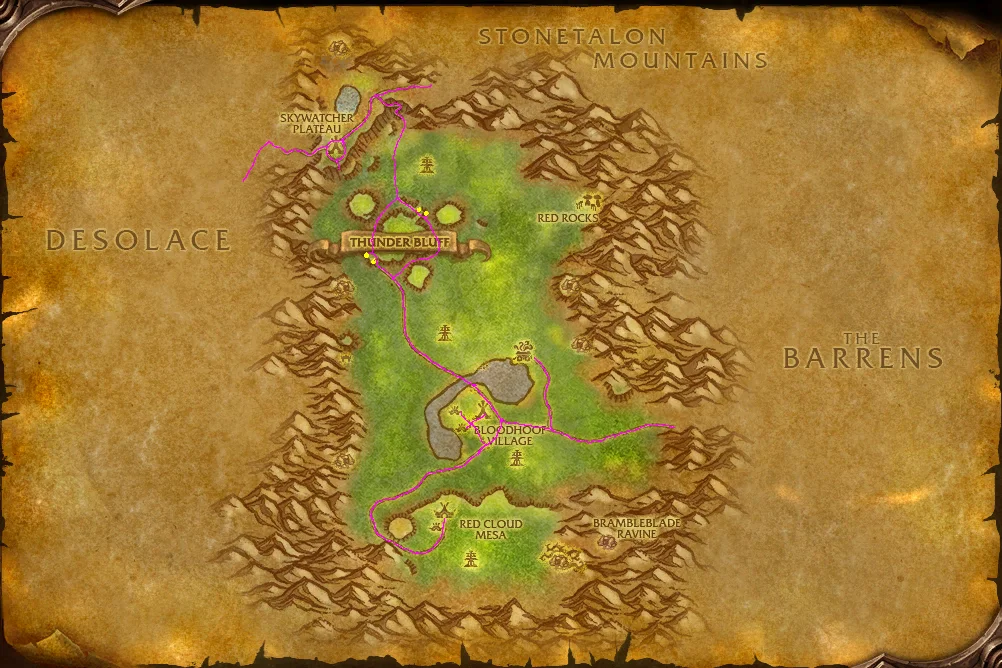
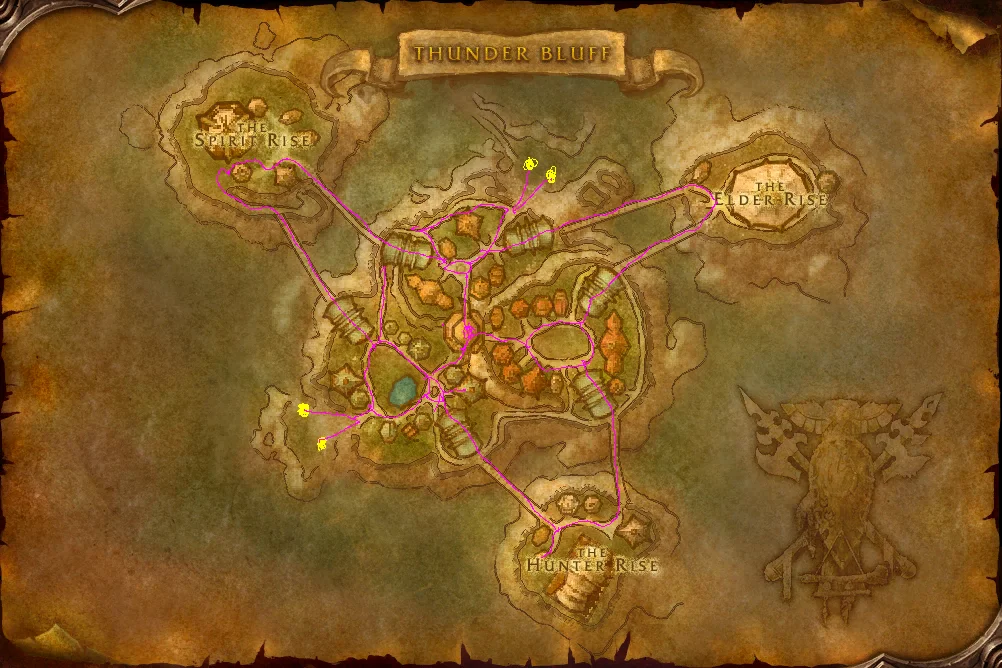
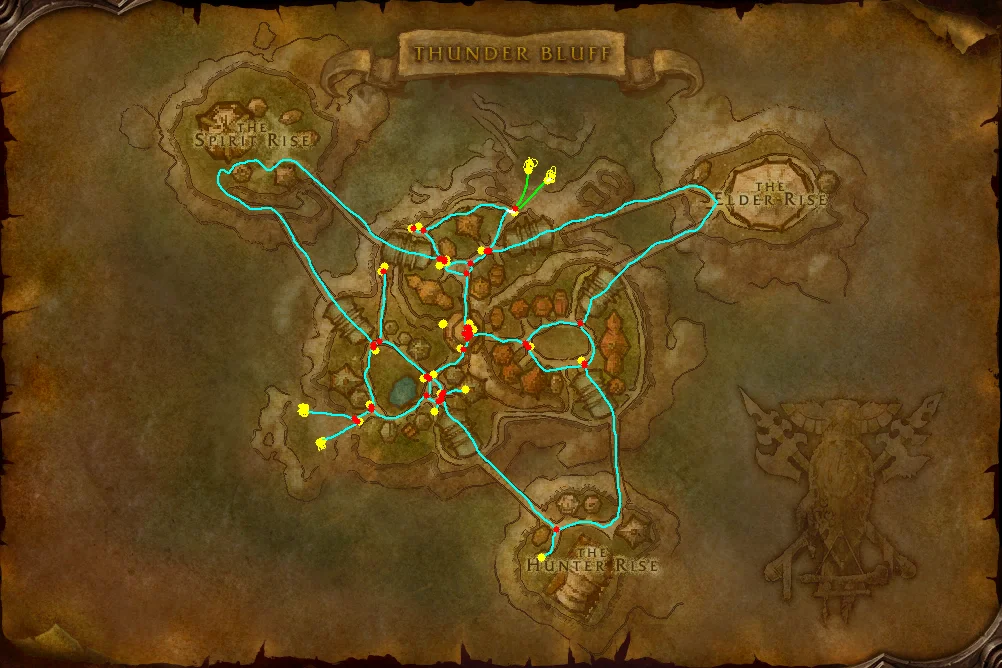
Saving and sending it in
-
Keep the file name
Save under the map's own name, for example
Zone_215_Mulgore_Mulgore.png. A file saved under another map's name gets traced onto the wrong map. -
PNG, same size
1002 × 668. Either your layer alone on a transparent background, or flattened onto the map: both work, because the key colours never appear in the map art. Keeping the layered file (PSD) as well helps: if it has more lines than the PNG, the PSD is used.
-
We stitch it into the network
Every drawing is placed in the world and joined to its neighbours: roads that meet at a zone's edge, city gates to their zone, lift dots to their other ends. Tunnels with no map of their own (Dun Algaz, Blackrock Mountain) are joined by hand. The result ships in the next addon update.